Everything from the beta link to using the app: how to get in, what to tap, and how to send feedback. New to TestFlight? You're in exactly the right place.
Join the beta — free
Free while we test, on iPhone with iOS 26. Nothing to cancel.
Scan with your iPhone camera, or tap the button if you're reading this on your phone.
Full access — nothing to buyLink → app in ~10 minThen a 9-screen tour
Part 1 · Getting in
From the invite to your first screen
Beta apps don't come from the normal App Store, so the first few minutes look a little different. Here's the whole path — about ten minutes, most of it waiting on downloads.
1
Open the beta link
Scan the code above with your iPhone camera, or tap Get PointSprout on TestFlight. Invited by email instead? Open that invite from TestFlight; it leads to the same place. Both come from Apple on our behalf, so they're safe to open.
2
Install Apple's TestFlight app
Beta builds are delivered through Apple's free TestFlight app, not the normal App Store. If you don't have it yet, install it once from the App Store, then come back to the invite.
3
Accept & install PointSprout
Open the invite and tap View in TestFlight → Accept → Install. PointSprout lands on your home screen like any other app — open it from there or straight from TestFlight.
4
Open it and sign in
On the very first screen, tap Sign in with Apple. The app never sees your password — Apple just confirms it's you, and you can keep your email private. Setting up a child's device? Tap "I'm a Kid" instead — see the kid box in step 5.
5
Create your own family
You run your own PointSprout family — you're the parent and owner. Start with the first box; the other two are optional, only if you've got a second device or person to test with.
Start here
Create & add your kids
Type your name and tap Add your family. Setup shows the cost first, then the subscribe screen — TestFlight purchases are free, Apple doesn't charge. Then add your kids — no real names or photos needed.
Optional
Add a co-parent
Want to test the two-parent side? On the Family tab, tap Add Co-parent, then their row to share their code. They tap Join a family, enter it, and you approve on the Family tab.
Optional · 2nd device
Add a kid's device
On your phone, open Family → Connect their device under a kid. On a spare phone or iPad, tap "I'm a Kid", enter that code, and approve it. Then pick that kid's profile and set a 4-digit Parent PIN that locks them into Kid Mode.
6
You're in — full access, nothing to pay
That's the hard part done. Everything's unlocked for you, and TestFlight never charges. Now here's what each screen actually does 👇
Ninety-second tours
Watch it before you try it
Four short clips of the flows you'll walk below — silent, with captions carrying the story. Recorded on an August build: setup, Home and Screen Time look different now. Follow the steps below for today's screens.
Now that you're in, here's the whole app. Work down at your own pace and tick off each thing as you try it — your progress saves on this device, so you can pick up where you left off.
0 / 0 tried
1
Home base
Home & Quick Add
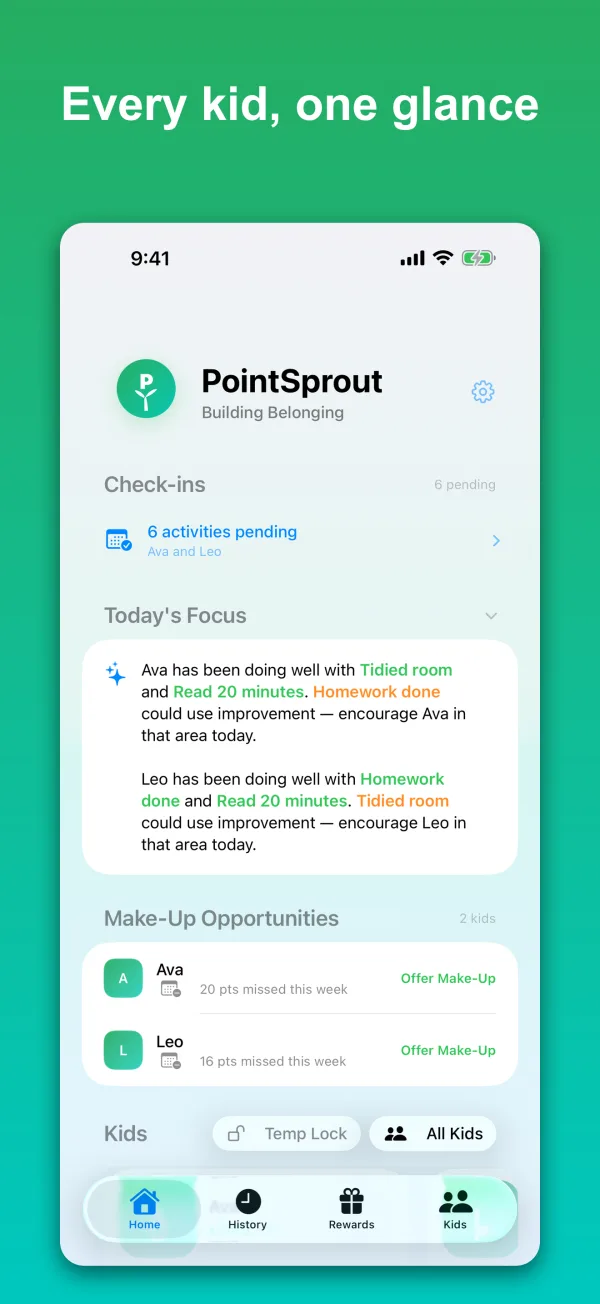
The parent dashboard — kid cards with balances, anything waiting on your approval, and recent activity, plus a fast sheet for logging points.
2Lock locks a kid's apps now; it reads Locked while it's on.
3Approvals surface here: Reward Requests, Transfer Requests, Waiting on you.
4The gear opens Settings — rewards, reminders, theme, Kid Mode, account. People live on the Family tab.
Try this
You'll know it worked: the balance updates instantly, a new row appears under Today, and you feel a success haptic.
2
Daily habits
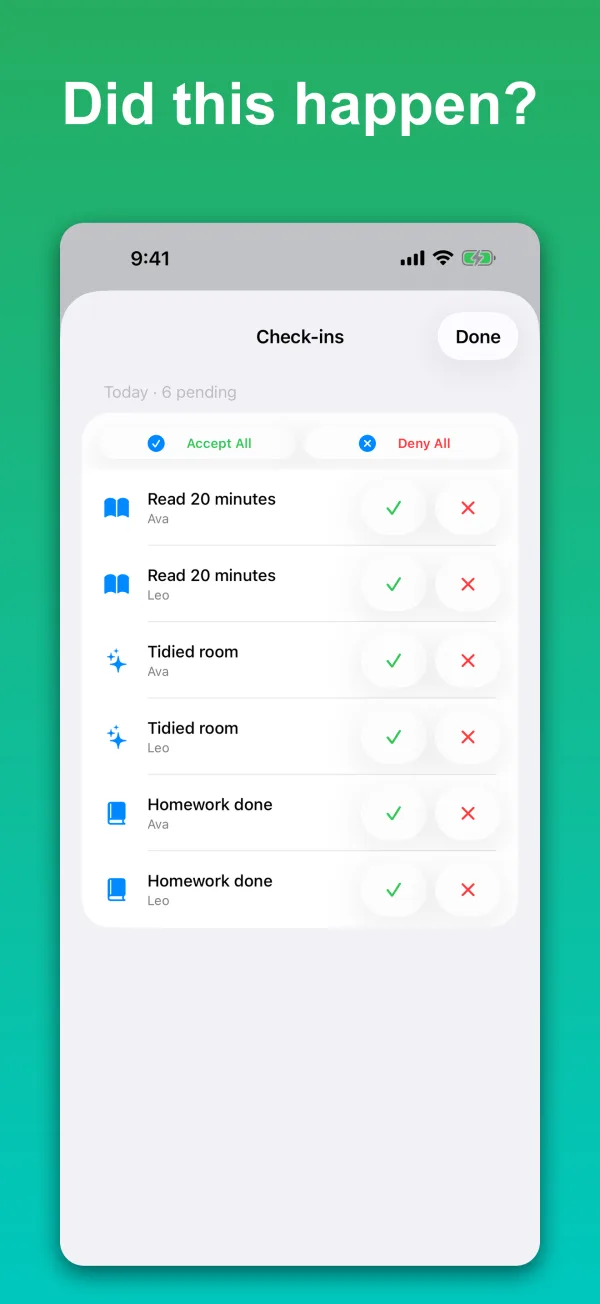
Scheduled Check-ins
Recurring activities like "Brush teeth" show up as check-ins to mark Done or Missed — answering awards or logs points automatically.
1Done awards the activity's points; Missed records it with no penalty.
2Coming Up lists activities whose scheduled time hasn't arrived yet.
3Check-ins sync across co-parents and Apple Watch — first to answer wins.
4Missed ones can feed Make-up challenges.
Try this
You'll know it worked: answered check-ins drop off the list and the kid's weekly progress ring advances.
3
Spend points
Rewards Shop
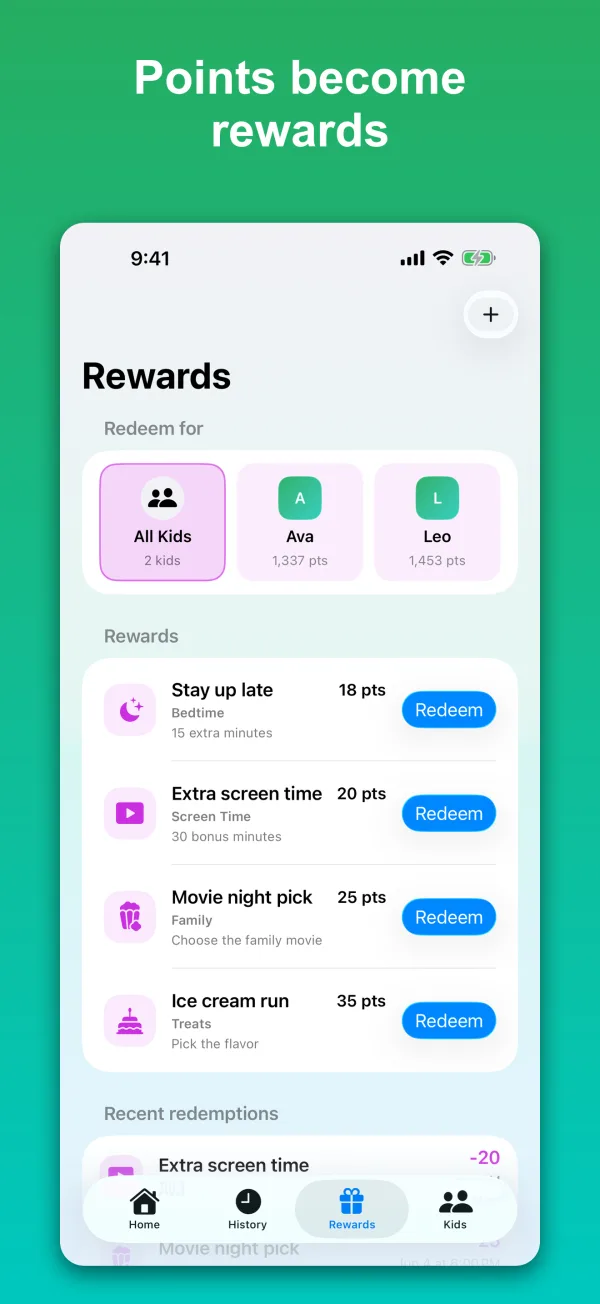
The catalog of rewards kids spend points on. Redeem on a kid's behalf here, or approve kid-sent requests from Home.
1The Redeem for row chooses who spends; All Kids covers everyone eligible.
2The confirm popover previews each kid's balance before → after.
3Kids' own asks land on Home under Reward Requests.
4Recent redemptions keeps the last several, with Undo.
Try this
You'll know it worked: the kid's balance drops by the cost and it appears under Recent redemptions (swipe to Undo).
4
Set up your crew
Family & Kids
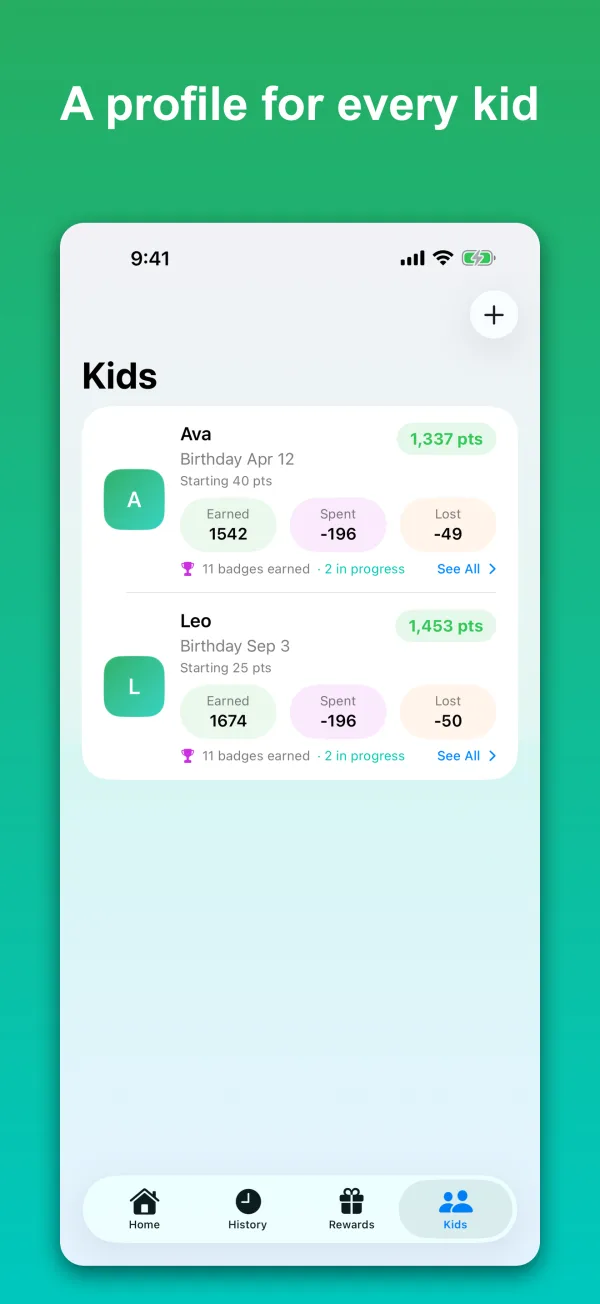
The Family tab: each kid's card — name, birthday, photo, balance, badges and Screen Time — plus parents, caregivers, kid devices and pets.
1Each kid card shows the balance, a badge line, and a Screen Time line.
2Balance changes are always logged to History for accountability.
3Tap the badge line on a card to open that kid's badges.
4Deleting a kid removes all their history and can't be undone.
Try this
You'll know it worked: balance edits create a History entry (they run through the ledger) and the kid shows on Home right away.
5
Motivation
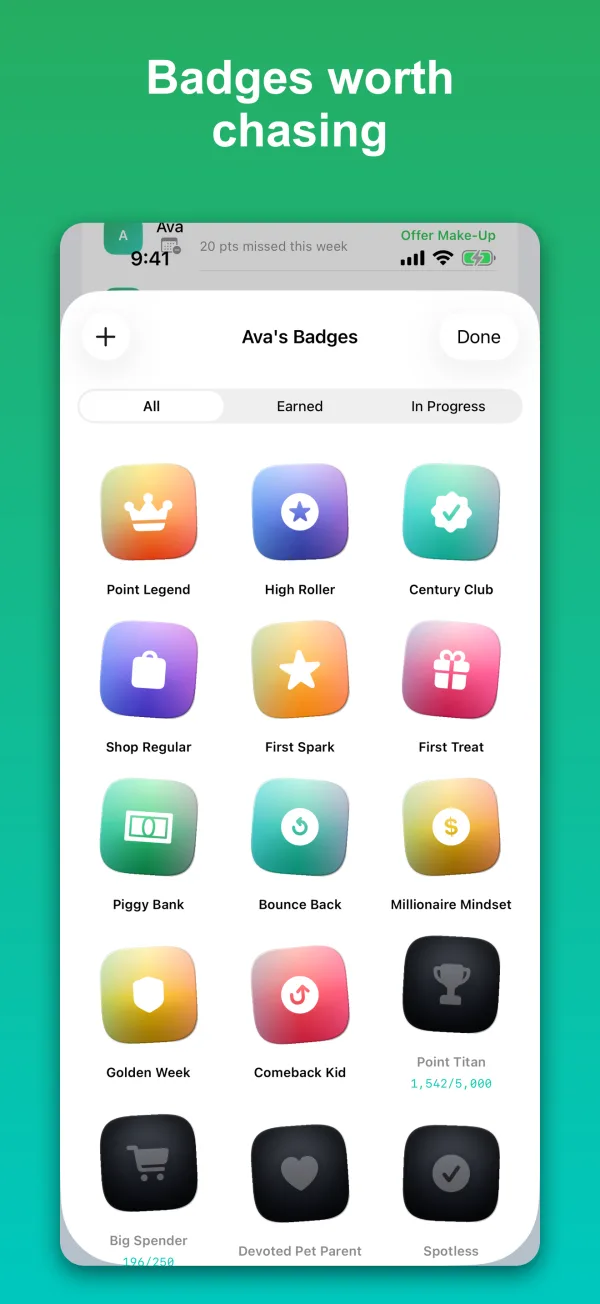
Achievements & Badges
Kids earn badges for keeping up with activities day after day. Browse earned and in-progress badges, and create custom ones for your family.
1Filter tabs: All, Earned, In Progress.
2Built-in badges unlock on their own as kids keep up with each kind of activity.
3Custom badges via Add Badge (the +) in the gallery.
4Kids get a full-screen celebration the first time they unlock one.
Try this
You'll know it worked: earned badges show in color with an unlock count; locked ones are dimmed with an N/target progress counter.
6
The receipts
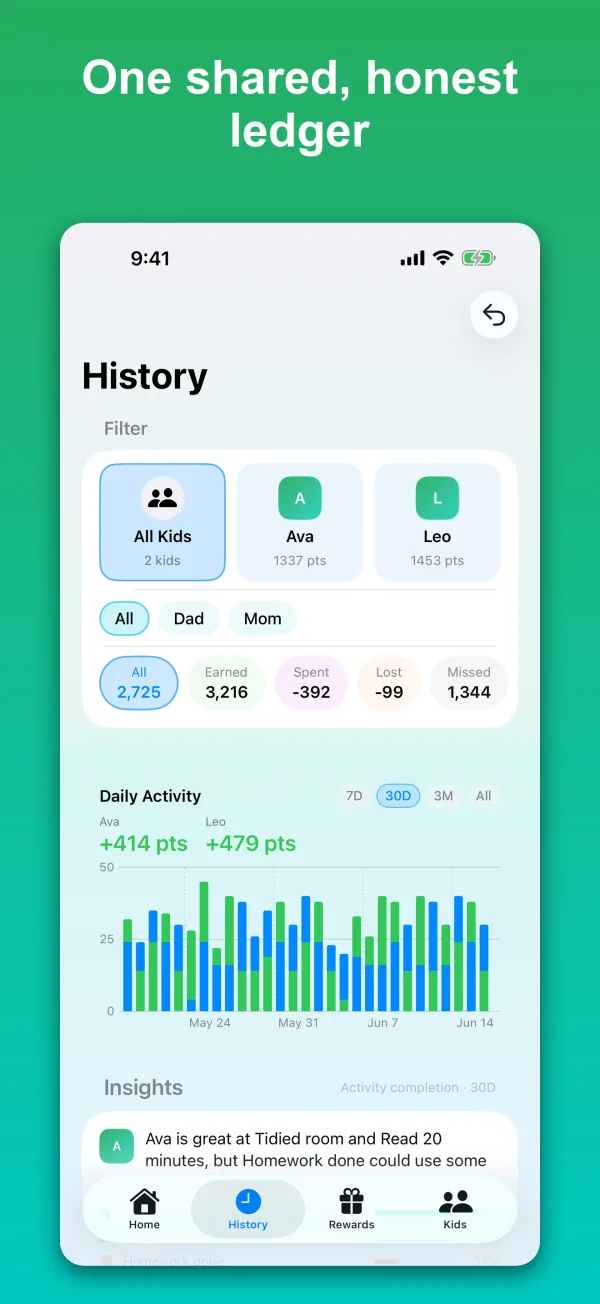
History & Insights
The full audit log of every point change, with a chart, per-type filters, and plain-language insights about the period.
1Type filters: All, Earned, Spent, Lost, Missed, Requests, Transfers, Edits.
2Each chip shows a running total for the current selection.
3Tap a day on the star calendar to open that day's entries.
4Undo reverses a transaction and records the reversal.
Try this
You'll know it worked: the chart, chip totals, and Insights text all update to match your selected kid, type, and period.
7
Family comms
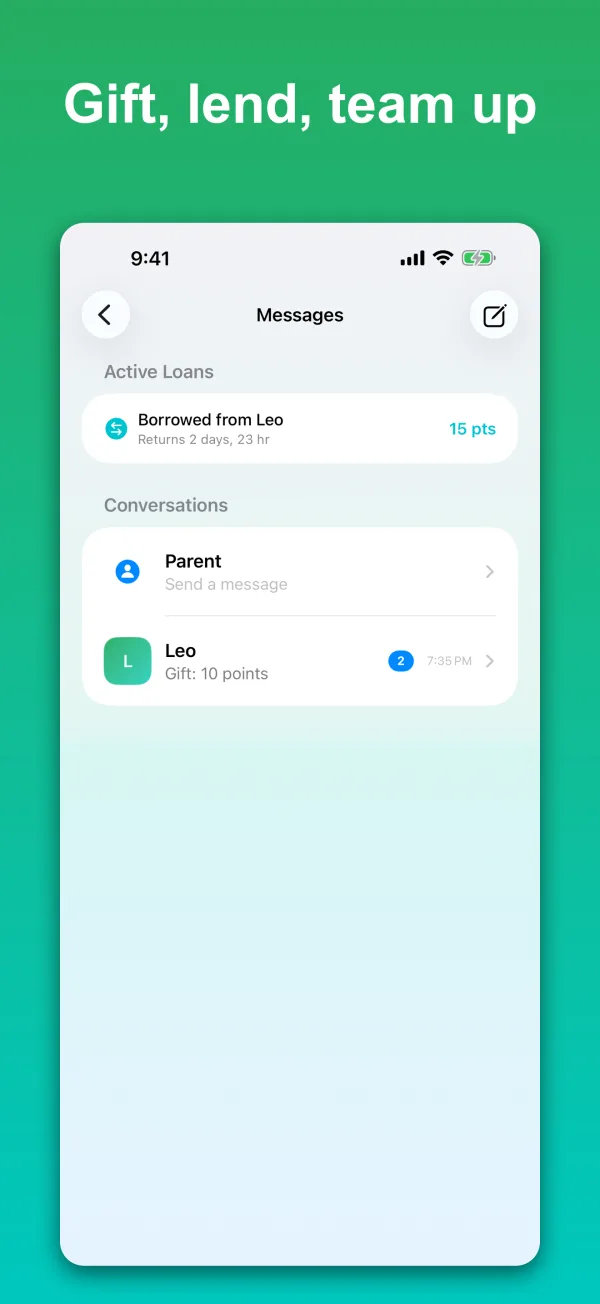
Messages, Gifts & Loans
Family chat — parents message kids, kids message parents and siblings, and kids can gift or loan points, with optional parent approval.
1Kids can send Send Points (gift), Request Loan, or Joint Reward to a sibling.
2Parent ↔ kid threads are text only.
3Pending gifts/loans wait under Home's Transfer Requests when approval is on.
4Active Loans tracks what a kid owes and when it's due back.
Try this
You'll know it worked: new messages show an unread badge; an approved gift or loan moves the points and posts a system note in the thread.
8
The kid's world
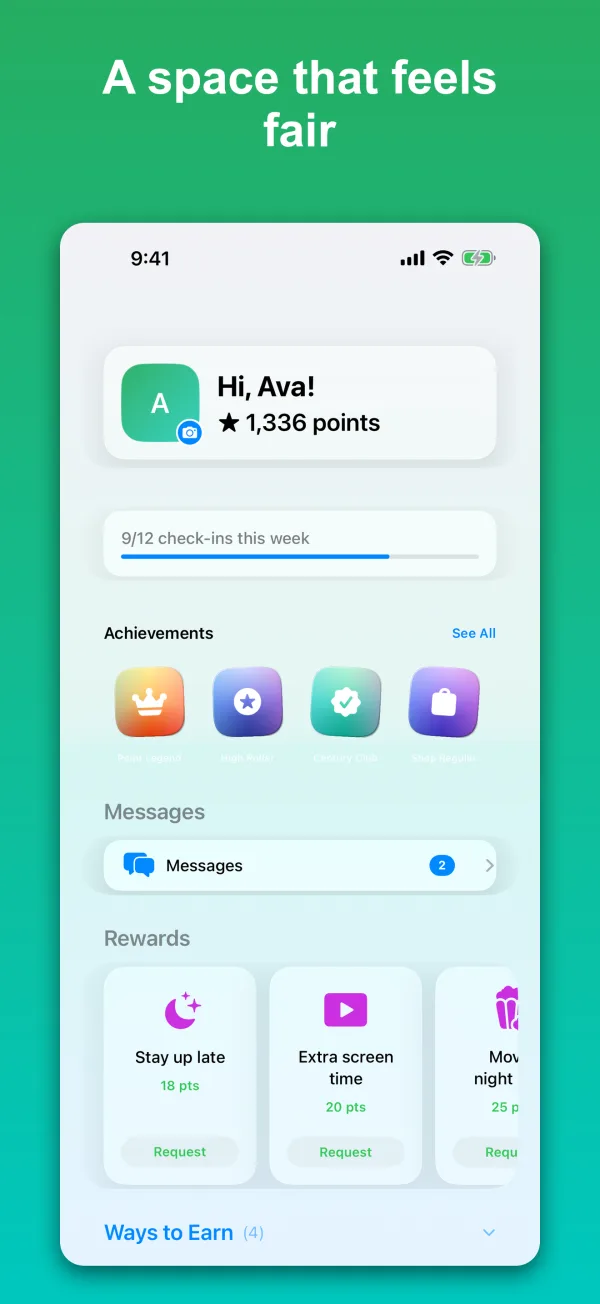
Kid Mode
A locked, child-facing view of one kid's balance, rewards, ways to earn, and messages — PIN-protected so kids can't wander out.
1Reward buttons read Request, or Need N more when the kid can't afford it.
2Suggest an Idea: Reward, Challenge, or Penalty.
3Kid-chosen photo/background changes need parent approval (COPPA).
4Parent Access + the PIN is the only way out of Kid Mode.
Try this · best on a second / child device
You'll know it worked: Kid Mode fills the screen and can't be dismissed without the PIN; kid requests appear on the parent's Home.
9
Optional superpower
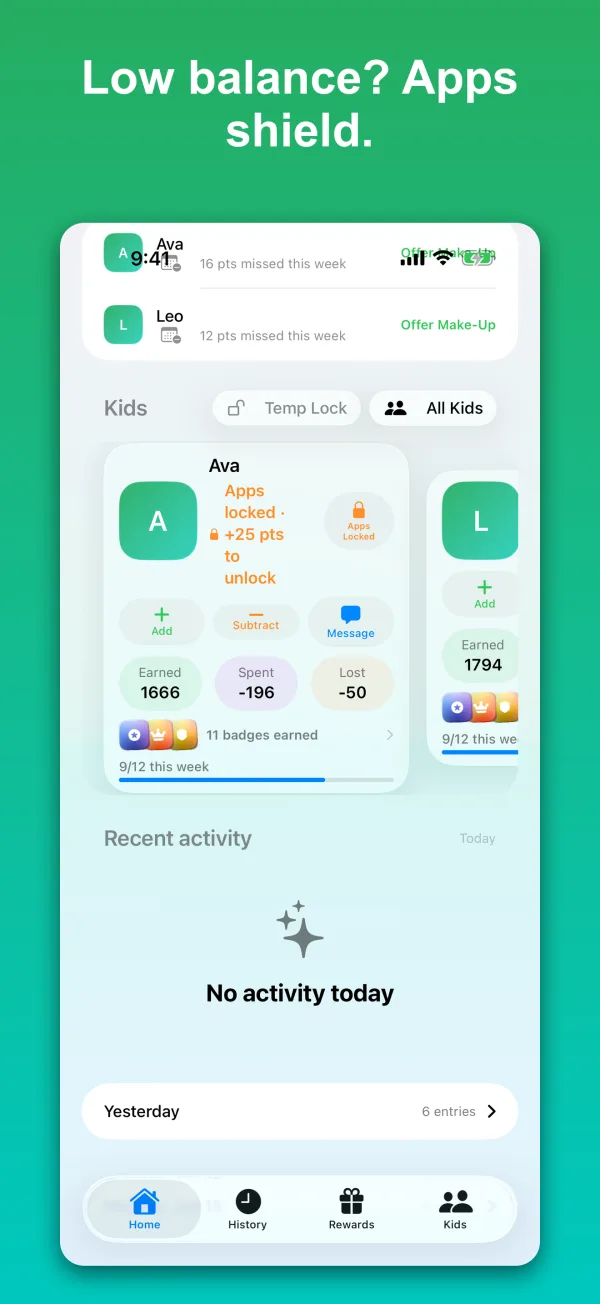
Screen Time
Optional Family Controls integration. Chosen apps on the kid's device lock under a points number or after a daily limit, and kids can ask for more time.
1Needs the one-time Authorize Screen Time (Family Controls) approval.
2Apps are chosen on the kid's device; the rest is on each kid's Screen Time page in Family.
3A points-locked kid card shows Locked · N pts to unlock.
4Entirely optional — Skip for now leaves it off; set it up later under Parent Access.
Try this · needs the system prompt
You'll know it worked: chosen apps lock while the balance is under the number and open once it's reached; a locked card shows Locked · N pts to unlock.
What's new, build by build
Every TestFlight update in plain language, newest first. Not sure which build you're on? It's at the bottom of Settings. Each build's release notes are also in TestFlight under What to Test.
Build 55Oct 2026
Make your own idea: kids build one step by step or tap Spin it; parents get the same builder under Ideas. Approved ideas come back as one to do.
Kid Mode tips: a small "?" on every section, screen time on the kid's card, and a "Write about today" journal page.
Your settings: Light, Dark or Match my phone, and one setting for points per idea.
Build 54Oct 2026
Hangman for everyone: pick who plays, or Everyone. The app picks the word or you type one; everyone guesses alone and fewest misses wins.
Grown-up photos: add yours from your row in Family and it shows in games, ideas and messages. Play lists every kid in colour.
Send us feedback: Settings → Help is now a conversation with us, screenshots welcome. Or email info@pointsprout.com.
Build 53Oct 2026
Give an idea: "Give to Ava" sends one straight to your kid. Their page comes back to you; Mark done pays the points.
Parents play too: challenge a kid or another grown-up. A game notification opens the game, and rematch reaches the other player.
Clearer ideas: every idea says what to do and what to show; quizzes play on the page. Home's Ideas is one small card, and Today shows five lines.
Build 52Oct 2026
Ideas: Bored? is a magic 8-ball in Kid Mode — shake it for something better than screen time. Every idea says what to show, and the kid's journal page comes to you to approve.
Play: tic-tac-toe, hangman and trivia, kid to kid on their own devices or against Mom and Dad; a two-player buzzer on one iPad.
Challenges count: a weekly tally, a family board and seven new badges. Home has an Ideas section with "Today we're".
Build 51Oct 16, 2026
First run: every wait gives up after ten seconds with Try Again; the paywall says what the app is before the price; "Setting up your family…" after Let's go.
Inviting: the card says what the other person does on their phone, the shared message has a link, Approve and Deny show progress and a reason.
Kid devices: reset a forgotten PIN from your phone. Settings → Help: a lag log that Send Feedback attaches.
Build 50Oct 16, 2026
First run: cancelling Apple sign-in shows no error, the waits after sign-in say what they're waiting for, the wizard's grey button says why.
Codes wait for the server: an invite or kid code appears only once it's saved; no signal shows "No connection" and Try Again.
Settings → Help → Send Feedback opens an email with your build and device filled in. Family set-up chips never break mid-word.
Build 49Oct 15, 2026
Quick Update: the preset reasons are stickers — tap one and it lights up, points on a tag in the corner.
Kid Mode: the activity list shows just the activity, points and time; the rewards row ends on whole cards; no gap above the photo card.
Polish: no smudge behind the + buttons in light mode; buttons inside cards are PointSprout green; photo approval centred with Approve above Deny.
Build 48Oct 14, 2026
Who are you? in Kid Mode setup: kid photos sit in rounded cards, no more ovals.
Same fix in twelve more places: Suggest row, Ask For More Time, Home's Lock and first-run buttons, the wizard's kid photo, invite and family set-up buttons, Quick Update's switch, the loan notice in chat.
Photo approval: Approve sits above Deny and never gets cut off.
Build 47Oct 14, 2026
Settings redesigned like Family: clear rows that each open their own page.
Rename parents and caregivers from Family.
History: Undo by the list, the calendar stops at this week, one-line titles.
iPad Home in two columns; Family returns to its main screen after 10 minutes away.
Fixes: Watch errors, message notifications that open the conversation, Kid Mode polish.
Build 46Oct 12, 2026
The approve-check-ins lag is fixed. History is read once per change, and the badge check runs in the background.
Family redesigned: one row per kid, and a page for each kid with photo, points, badges, profile and Screen Time.
Owner is whoever pays. A second subscriber keeps their own family. Joining adults must give a name.
Kid Mode on iPad: calendar at its normal size, sideways hero card, badge counts inside their tiles.
Build 45Oct 10, 2026
No more freeze after approving check-ins. Hidden tabs stop redrawing, and a batch of approvals saves once.
History: the filters sit under an Activity header, directly above what they control.
Build 44Oct 8, 2026
Home's logo sits clean on a softer, higher gradient, on every page.
The Lock button is the status:Lock, a red Unlock, or Screen Time when it's off.
Rewards and History: the kid pictures fill the width.
Family: each section says what tapping does.
Kid Mode on iPad: two columns in landscape, with Rewards as a tighter grid.
Build 43Oct 8, 2026
Home is tighter: the green runs to the top, a bigger logo, and less space between sections and on the kid cards.
Family kid cards are half the size. Photo, name, birthday and points on one row; tap it to edit. Family Name is below the kids.
Schedule has a switcher at the top: Week, Routines, Activities and Rhythm.
Bigger kid photos on Rewards and History, with a ring on the selected kid.
Build 42Oct 7, 2026
Remove an activity for one kid. With a kid selected on Schedule, delete asks Remove for Simon or Remove for Everyone.
One + on Schedule for a new routine, activity or standing time. Family Rhythm now lives on Schedule.
Routines can differ per kid. Each kid gets only their own items.
One line per routine. Check-ins, Home and History show Morning Routine · 3 of 4. Tap to see each item.
Home is tighter: bigger logo, All Kids menu by the gear, less empty space.
History has one filter row. Rewards rows are simpler; long-press to edit.
Family tab: one + to add a kid, adult or pet. Swipe to remove.
Kid Mode is shorter, with Rewards near the top and headings readable over the photo.
Setup and paywall are cleaner, with one Subscribe button.
Deletes all ask the same way. Settings says Delete Account, Reset Everything or Delete Family.
Build 41Oct 5, 2026
Reward prices in setup: changing How often resets a reward's price to automatic, even one you typed in. Same as Screen Time.
Behind the scenes: test fixes only; nothing else changes on screen.
Build 40Oct 5, 2026
Kid photos are bigger everywhere a kid is featured: Kid Mode, the Family tab, Who are you?, the Me sheet and the kid editor.
Reframe Photo shows the card's shape, so what you frame is what the card shows.
The fade on the Home card starts lower and is gentler, so more of the photo shows.
Coming Up opens from its header, on Home and in Kid Mode.
Screen Time prices round one way: 30 minutes never costs more than two 15s. Changing How often resets prices to automatic.
"Auto prices are out of date" may show after updating. Tap Update Prices to apply the new numbers.
Build 39Oct 4, 2026
Kid cards put the kids first. Each card leads with a big photo, with the name, points and Lock on it.
Change a photo with the camera button on the card.
Sharper photos. New photos are saved at a higher size. A photo set before this build looks soft until it is picked again.
No photo yet? The card shows the kid's initials on their own colour.
Screen Time status says what it means:Screen Time off instead of Off.
Large text moves the words below the photo so the face stays visible.
Build 38Oct 3, 2026
Buttons that didn't work now do. A full pass over every screen fixed 58 controls: whole rows and calendar days tap, errors show instead of hiding, and nothing looks active when it can't act.
Lock always locks a kid's apps. It never adds points.
Approve from a notification works whichever tab the app was on.
One tap on a kid's photo opens the photo picker.
Messages: each co-parent's thread opens correctly, and a gift can't be sent twice.
Built-in badges can't be edited, and Reset Badge Progress is gone. Use Recount badges instead.
After a failed load, the app tries again when reopened.
Build 37Oct 1, 2026
Scheduled activities are calendar-only. Practices, lessons and classes added in setup no longer earn points or ask for a check-in. Edit them in Family, under Schedule.
They show on the Schedule screen as grey rows, beside the check-ins.
One Add item button on a routine. It opens the existing items, with Add new item at the top.
The Responsibilities page no longer slides sideways.
"Couldn't load family data" is fixed for Builds 35 and 36 too. No update needed for that one.
Build 36Oct 1, 2026
Approving check-ins no longer freezes. Approving several days in a row could stall the app and close it. Fixed.
History opens faster for families with a long record.
Load errors show a code. If family data can't load, the message now has a short code to report.
Build 35Sep 28, 2026
Screen Time works like Apple's. Each kid has a Screen Time page in Family: Points Lock, Daily Limit, Ask For More Time, and the apps on their device.
Give Time is 15 minutes, 1 hour, or the rest of today. Lock Now asks first.
Answer from the notification. "Ava asked for 30 more minutes" has Approve and Don't Approve buttons.
Kids can ask in Kid Mode. A Screen Time card shows what's locked and offers only what they can afford.
Badges count on every points entry and stay the same on every phone. Settings has Recount badges if anything looks off.
Unlock works if the subscription lapses. A parent can always lift a lock.
History loads the last 90 days. Tap Load older for more.
Build 34Sep 24, 2026
Fixes from the Build 33 walkthrough. Your family can keep going; no new setup needed.
Quick update: Edit opens filled in. Long-press an activity, tap Edit, and the editor opens with that item's details, first time.
History: a day opens by itself. Tap a day on the calendar, or See day on the chart, and that day's entries slide up on their own. The list underneath never scrolls.
Family: the badge row opens badges. On a kid's card, the badge line goes to their in-progress badges. Edit edits the kid.
Old point badges are cleared. A family from before Build 33 loses the retired badges that showed as blank tiles, and gets the new ones.
Screen time says the exact number.+6 pts to unlock means 6, and Unlock adds exactly that.
Small things.1 pt, not 1 pts. A locked badge says what's missing, like No losses for 30 days. A deduction you undid no longer blocks a badge. The Family card's screen-time line now says locks under 10 pts.
Reward prices set before Build 33 stay as they were. Change them under Rewards, Prices & insights.
Build 33Sep 22, 2026
Start a new family for this build. Points work differently now, and an older family will keep its old values. Settings has Create New Family.
Activities are worth 1 to 5 points, by effort. Brushing teeth is 1, a real chore is 3, mowing the yard is 5. Losses are 1, 2 or 3.
Reward prices follow how often they're redeemed, from a small daily treat to a big one every few months.
The weekly goal from Build 32 is gone. The number on an activity is the number it pays.
Badges count days, not points. About two in the first week, a few more by the end of the month, then longer goals. On It is 20 days with a homework check-in.
Badges earn from your history, so a family restored on a new phone picks up where it left off.
Screen-time prices are in Family, under a kid's Manage button, then Prices. Longer time now costs more: All day can cost up to two days' points, so it no longer matches 90 minutes.
Build 32Sep 22, 2026
Points are smaller, and a week has a target. New activities start at 1 point instead of 10. In Family, set a Weekly goal for everyone or per kid — say 100 — and every activity, reward and unlock price adjusts so a week of the routine adds up to about that. Balances move once to match, quietly, with one line in History.
Home and Kid Mode show the target.72 of 100 this week over the weekly bar, and History's headline says it too.
Badges follow the new scale. Point badges divided by ten, so Century Club is 10 lifetime points, and each kid's target follows their own goal.
If the schedule drifts, Family says Adds up to 140 a week and offers Rebalance to 100. Nothing changes until you tap it.
The setup wizard has a way out.Sign out and Join with a code on the first page.
Large text fits. Check-in headings and activity names stack instead of breaking mid-word.
Build 31Sep 21, 2026
History's chart is new. Pick one kid and it draws their balance over time, with a dot at every reward they cashed in and a dashed line at the screen-time threshold. All Kids shows earned above the line, spent and lost below. Under Earned, Spent or Lost, each kid is a colour.
One number, one window.Earned 120 this week above the chart, 7 days before under it, and the chips, chart, insights and list all read the same 7D, 30D, 3M or All. The list ends with Show everything.
Touch the chart. A callout names the day, the points and the reward; See day jumps to it in the list. Three months and All show whole weeks, this week faded until it ends.
History rows fit again. A long activity name wraps by word; the date column no longer folds to one letter per line.
Build 30Sep 20, 2026
Home's kid card matches Family. Name and points up top, one Lock control, the lifetime totals as one line, and the buttons never split a word at large text. A long name gets its own row instead of shrinking. The next kid peeks in at large text sizes.
History: the star calendar first, a day header inside each group, and a tap on any calendar day jumps to it.
Badge detail shows what counted. Open any earned badge to see the activities that earned it.
Rewards rows fit. The cost sits under Redeem, one line under each name, and the kid picker scrolls before it wraps.
Settings is shorter. One-line footers, Renews with a short date, and the family card shows only what applies.
One number for check-ins. The reminder, Home and the sheet all say 3 to answer, counting cards.
Plain error messages. Offline, subscription lapsed, or try again. No raw error text.
The reminders notice sits under the kids, and says one line.
Build 29Sep 20, 2026
The Family tab's kid cards are simpler. Name, birthday and points up top, then two quiet lines: badges, and screen time with one Manage menu for Give time, Turn on or off, and Unlock. The lifetime totals live on Home and History.
A star calendar in History under the chart, and in Kid Mode under the weekly bar. Gold for a whole day done, silver for three quarters, bronze for half, the count alone below that. Today earns its star when the day is done.
Delete my account from the subscription screen. A parent who decides not to subscribe is never stuck on it: Not now, sign out or Delete my account, behind a confirmation.
Build 28Sep 19, 2026
History's insights fold by routine. One row per routine in day order, with a percent for each. Tap a routine to see its activities as counts. The sentence up top names the routine your kid is great at and the one activity dragging it down.
Screen time on the Family tab. Under each kid: Give time for more time right now, Turn off / Turn on for screen time itself, and Unlock when a kid is locked. Give time works even while a subscription has lapsed.
A kid's request tells the truth. If the family's subscription has lapsed, the kid sees Saved. It sends when your family's subscription is renewed. instead of Request sent, and a pending screen-time request has an Ask again button.
Comeback Kid waits for the comeback. It used to unlock on the loss itself. Now it needs an earn after the loss.
Custom badge bonus points are paid. The unlock screen promised them; the balance never moved. It does now, once per unlock, and History shows the row.
Build 27Sep 17, 2026
Undo takes a miss back everywhere. Undoing Marked 6 missed used to leave the badges and History still counting them — a mis-tap could deny a Perfect Day. Now nothing remembers a miss you took back.
Weekly Warrior and Monthly Master wait for the week or month to end. They unlocked on a clean first day. Now they judge the last week or month that has finished, whenever the app next opens.
A deleted activity leaves Coming Up. It used to stay listed until its time passed.
The kid card's lock status is one line.Unlocked · 30 min left wrapped to four lines and stretched the card.
Large text fits. Routine names on the schedule calendar stack instead of breaking letter by letter, and the setup step headers wrap instead of ending in ….
The Family tab keeps its fade after Back. Returning from Schedule or an activity list, the list scrolled under the clock with nothing behind it.
Plainer words. Activity, not preset or habit. History, not transactions. Badges, not achievements. The deny note names your kid, not your child. Settings says what a thing does. A kid's name is bold wherever it appears.
Kid reminders: choose 3, 4 or 5 a day under the switch in Settings. This shipped in Build 26 without being called out.
Build 26Sep 11, 2026
Two notifications a day instead of one per activity. Your phone now sends a short list of what's waiting — at dinner and bedtime, from your family's own times. Choose 1, 2 or 3 a day, or set your own times, under Settings → Reminders.
Kids' devices get at most a few reminders a day, grouped by morning, afternoon and evening — Morning: brush teeth, make bed, feed Jojo. One switch turns kid reminders off entirely for the whole family. Update every device before relying on it: an older build on a kid's iPad keeps its old reminders until it updates.
A kid can tap I did it. It doesn't move points — their row on your phone reads Leo · says done and waits for your next reminder. You still approve or deny.
One row per activity, a tick per kid. An activity two kids share was two rows; now it's one row you answer for each of them.
Whoever is waiting comes first on Home, and the tabs show a count when someone is. Today's Focus is one line per kid and stays folded once you fold it.
Coming back from a trip asks first. Days away used to be marked missed silently. Now the app asks, and Family → Days away lets you see and undo what you skipped.
Undo a batch you didn't mean.Marked 6 missed · Undo stays for a few seconds after any bulk answer, and locking every kid's apps asks first.
Schedules, activities and family rhythm moved to the Family tab. One Schedule screen with the setup calendar, search, and routines folded to a row. Settings keeps rewards, devices and your account.
Points numbers are readable everywhere. The faint green and orange text is gone from the main app, not just setup.
Check-in rows fit on one line at normal text size, so a screenful is a screenful.
The app says when it's offline instead of failing quietly, and a shield stops saying waiting after you've said no.
Setup shows how to connect a kid's iPad, and agreeing to the terms is one tap with the full text a tap away.
Build 25Sep 8, 2026
A second phone can join your family. Entering an invite code was impossible on a phone that hadn't set up a family — you got a purchase screen or a sign-out. The subscribe screen now offers Join a family with a code, and waits while a parent approves.
Your own second phone stops asking you to set up again. A phone that remembered an unfinished setup would reopen it — for your real family. Finishing there would have made a second copy of your kids and activities. A family that has kids never reopens setup now.
Setup reads properly in Light Mode. Green text on a green background is gone, body text is darker, and kid names are bold wherever they appear.
Shorter words. Every setup screen says its purpose in a line or two instead of a paragraph.
Every item has a name you can change. Rename anything, anywhere, and the name follows it — across its days, onto your week, and into the app.
Deleting asks first, and tells you what goes with it. Items that look identical now show their kids and their days, so three Homework done rows are three different things you can tell apart.
One switch for weekend times. Open it and it is on, with the time right there. No second tap.
Your week filters to one kid, and an activity can be copied to another kid — optionally taking those days off the first.
Every scheduled item shows what it's worth.3×/week · +30 pts/week, the way routines already did.
Your pet's name is on their chores. Add Jojo and it says Feed Jojo, not Feed Pet — and the Family page lists your pets instead of hiding them behind a row.
Rewards start empty. Nothing is picked for you, screen time lives in its own section, and the price still follows from what your kids can earn and how often you'd let them redeem.
Perfect Day waits for the day to be perfect. It used to unlock on the first check-in of the morning.
New routines open empty, with Add new item and Add existing item, and Edit sits above the items it edits.
Build 24Sep 4, 2026
The cost comes first. Setup now opens with what PointSprout costs — the free trial, then the yearly price — and the subscribe screen comes before you enter anything about your family. If you'd rather not, Not now, sign out is right there.
Already subscribed? It says so. The cost card shows your subscription (or trial days left) and the subscribe screen never appears.
Shorter text. The new screens say their purpose in a line. The rest of setup gets the same treatment next.
Invite codes tell the truth. A used code now shows as used. Deleting a family also cleans up its pets, rhythms and invite codes.
Fixes. The cost card is readable at the largest text sizes. A leftover "still setting up" state could follow a sign-out onto the next person; it no longer does.
Build 23Sep 3, 2026
The keyboard stopped eating the screen. Typing on the schedule page used to lift everything so high that a grey band erased the very box you were typing in, and the Add these button underneath it. The box now stays readable with the keyboard up, the button underneath is reachable, and the Back/Next bar steps out of the way while you type and returns the instant the keyboard goes — the way iOS's own forms behave. Everywhere, not just setup.
Every keyboard can be dismissed. Nine places — message composers, the gift and loan notes, the custom reward and badge editors, the deny-a-request note, and the schedule editor — had a multi-line box where Return adds a new line and nothing closed the keyboard. Each now has a Done above the keyboard, and dragging down dismisses it too.
The floating Done pill no longer covers what you're editing. iOS 26 floats its Done button over the right end of the row you're typing in; the app now scrolls the field clear of it, so the end of a long line stays visible and a kid card's remove button is tappable while the name is being edited.
Small setup polish. Pet-chore chips now support touch-and-hold to put a chore straight into a routine, as the hint line promised. A custom-days item's editor is titled with its days (Walk the pet · Mon, Wed, Fri). An item's own time no longer shows up as an "existing check-in" suggestion inside its own editor. And Create your own now opens the same scheduling card as everything else, so a custom item gets its days and time before it lands in the list.
Build 22Sep 3, 2026
The keyboard stopped eating the screen. Typing on the schedule page used to lift everything so high that a grey band erased the very box you were typing in, and the Add these button underneath it. The box now stays readable with the keyboard up, the button underneath is reachable, and the Back/Next bar behaves the way iOS forms do instead of floating in the way.
Every keyboard can be dismissed. Nine places — message composers, the gift and loan notes, the custom reward and badge editors, the deny-a-request note, and the schedule editor — had a multi-line box where Return adds a new line and nothing closed the keyboard. Each now has a Done above the keyboard, and dragging down dismisses it too.
Build 21Sep 2, 2026
Setting up a schedule is one thing you learn once. Every place you set when something happens — during setup, in Settings, on your week — now uses the same card. Inside it, an activity can run on as many day-and-time blocks as you need: reading on Wednesday and Thursday at 8 PM and weekends at noon, as one activity rather than two. The old Also on weekends? switch is gone — weekends is just another block now.
Change something once and every screen agrees. Setup used to keep separate copies: change baseball on one page and the page before it still showed the old days — and editing each day separately could leave you with two practices for one kid. There is one schedule now, and every screen is a window onto it. Going back shows what you actually set.
Setup starts by telling you what's coming. Five cards up front — your family, your schedule, responsibilities, rewards, screen time — say what each part sets up. Skip in one tap. The progress bar names the part you're in.
Tell us about your family, all in one place. Naming your family, adding kids, and adding a co-parent, a caregiver or a pet are now one page — and you can add more than one of each, for step-parents, a couple of helpers, or a second dog. Afterwards the Kids tab is the Family tab: everyone and every pet lives there, editable.
Type your week instead of tapping it out. Under each kid there's a box: write "Gymnastics wed at 5:50, art on sun at 3 and baseball practice Thurs at 5" and tap Add these. The app reads it, guesses sensible times, and shows you cards to check. Anything it can't place is flagged for a day and time rather than refused. Your typing never leaves your phone — this is not an internet service, it's the app reading a sentence.
Invite each person their own way in. The single family code is gone. Everyone you added gets their own share card at the end of setup, good for a week, and a kid's device gets a code you generate when you need it.
Your week reads like a day.Here's your week now groups check-ins into morning, afternoon and evening, and folds a routine's steps under the routine instead of listing every one. Tapping a day highlights the whole day, dots included. Change one day of something and it asks whether you meant that day or all of them — and removing one asks the same.
School days were wrong, and are fixed.School Mornings only ever ran Monday to Thursday — it skipped Friday, which is a school day. It now runs Monday to Friday, and School Nights runs Sunday through Thursday, the nights before a school day. Holidays are still skipped. ⚠️ If you had something set to school nights and weekends at the same time, those now both include Sunday — you'll see it twice on Sundays until you open it and adjust.
Rewards say what they cost and why. The rewards step names its two halves up front: pick them, then say how often a kid could redeem each. Prices come from what your kids can actually earn and that frequency, and every reward shows its description while you pick and while you price.
Screen time asks one question first. A switch at the top: same rules for all kids, or different per kid — and the screen shows one or the other instead of both at once. Switching back to All kids warns you by name before it overwrites a kid you'd customized. Each kid's earning potential stays visible either way, since they spend their points separately.
Fixes you'd have hit. Editing a pet's name could quietly undo a chore schedule you'd customized — and leave the old days behind, so a kid saw the chore twice in a day and could claim the points twice. Removing one day of a chore could remove the whole chore. Starting to edit an activity's days and then choosing Make a day different threw away what you'd typed. Estimates that read like 201 points a day now land on fives. Long day names no longer break across two lines. And on every scrolling screen, text now fades at the top and bottom instead of running into the clock and signal bars.
Build 20Aug 31, 2026
Adding and editing opens a card now. On the responsibilities page, tapping a suggestion — or an item you've already added — opens it in its own card: set the days, time and points there, hit Save, and it drops into its place in the list. Cancel throws the changes away. No more items landing somewhere off-screen, and no more card hopping around the page while you're still picking days.
Routines save when you say so. Editing a routine item used to save silently as you typed, with only a back arrow to leave by. There's a real Save and Cancel now — nothing sticks until you save, backing out discards, and Save stays off until the item has a name. Added starter routines also show a proper Edit button, so editing no longer hides behind the +.
Build a routine from what you already have. Making a new routine can now pull in existing activities — take the three nutrition items you set up, add one new one, and call it Healthy Eating. Works during setup and later in Settings → Routines. An activity that runs on custom days joins as a whole — its day pattern comes with it.
Twice a day is one habit now. Feeding the dog happens morning and evening — so open the activity, set Times per day, and it becomes one item shown as 2× daily, with its own check-in at each time. Rename it or change its points and both times update together. Its history and streaks carry over untouched.
Reuse a check-in time instead of scrolling for it. Once you've picked a few times, every time picker offers them — plus your family's own anchors like Bedtime — as one-tap choices above the dial.
Coming Up reads like your day. The Home screen's Coming Up list now folds a routine's check-ins into one line — Morning Routine · 4 check-ins · 7:30 AM — instead of listing every step. The N more footer counts those grouped lines now, so the number may read lower than before; nothing was removed.
See the note under every reward. Picking and pricing rewards during setup now shows each reward's description right under its name, in both places, so you know what you're pricing.
Numbers that read true. The earning-potential estimates during setup showed figures like 201 points a day — oddly precise for a world where everything is priced in 5s. Estimates now land on 5s, matching how points actually move.
Check the experts yourself. Screens that cite published guidance — the Why these? and What experts recommend sheets — now link to each organization's own site, so you can read the source rather than take our word for it.
Setup's opening note is skimmable. The About setup explainer on the first screen lists what setup covers as bullets — and still promises, truthfully, that nothing you set there is final.
Small fixes. Changing the points on a custom-days activity now updates every day it runs, not just one. If saving a routine ever fails, the editor stays open with your changes intact instead of quietly dropping them.
Build 19Aug 25, 2026
Setup is four steps, not five. It used to ask what your week looks like, then what your kids are responsible for, then ask about weekends — which read as being asked the same thing twice. Weekends aren't a separate question now: everything lives on one page, and a Weekends heading appears by itself the moment you add something that only happens at the weekend.
Every screen tells you what it's for — and where to change it later. Each setup screen now has a question-mark button explaining what the screen does, how it gets used, and exactly where in the app you can change it afterwards. Writing those answers turned up three things you genuinely couldn't change later; all three are fixed in this build.
Routines are editable after setup. Settings has a Routines screen now: rename one, change its icon or shared time, pick which kids it's for, reorder its steps, add an activity to it, or create a new routine from scratch. Breaking a routine up leaves every check-in intact — nothing is deleted, and no history is lost.
Your family's rhythm is kept. The wake-up, dinner and bedtime you enter during setup — along with standing events like the school run, naps, or a therapy appointment — used to be thrown away the moment setup finished. They're saved now, shared with your co-parent, and editable under Settings → Family Rhythm.
Pets are real now. Your pet's name, kind and chores are remembered, so renaming Rex to Bandit renames every one of his chores at once instead of leaving you to edit them one by one. And Feed Rex no longer shows up next to a separate Fed the pet suggestion — the app knows they're the same thing.
Adding a routine stops re-offering it. Add the Morning Routine and the standalone Morning routine card disappears from the suggestions instead of reappearing at the top of the list, un-ticked, as if you hadn't just added it. Remove the routine and it comes back.
Pick exactly which days something happens. Walk the dog every day except Tuesday and Thursday, homework on Monday, Wednesday and Friday — any activity can now run on whichever days you choose, and it still shows as one item rather than five. And when you change something from a particular day, it asks whether you meant that day or every day.
See your week two ways.Here's your week now switches between By day and By pattern — the second groups check-ins by when they repeat (every day, weekdays, school days, weekends), which is often how you actually think about them.
Fixes you'd have hit. The last setup screen had no Back button, so you were stranded. Editing an item's name could silently reset its points. Pausing an activity's schedule wiped which kids it was for and reset its time to Monday 5 PM. A child's photo could be replaced but never removed. Reset Everything left several kinds of data behind — and on a big family it could take minutes and leave things half-cleared if you switched apps. All fixed.
A quiet one worth knowing about. Changing an activity's frequency — Weekly to Daily, say — used to make the app go back and mark every day it "should" have run as missed, which dented your kids' streaks for something they never actually missed. It doesn't do that any more.
Setup no longer loses your answers. Editing an activity during family setup could crash the app and drop you back at the very first screen with everything you'd typed gone. That crash is fixed — and setup now saves as you go, so if the app is ever interrupted you pick up where you left off instead of starting over.
You can see what you're typing. On several setup screens the keyboard covered the field you were filling in — adding a second child was the worst of it. Every step now lifts the field clear of both the keyboard and the Back/Next bar.
Activities can happen more than once a week. Two baseball practices, tutoring on Monday and Friday — an activity now takes as many days and times as it needs, each one its own check-in. The icon beside an activity's name is also tappable now, so you can change it.
Different times on weekends. Wake-up, dinner and bedtime each have an optional weekend time tucked behind Different on weekends? — for kids whose Saturday looks nothing like their Tuesday. Leave it closed and nothing changes.
Routines are yours to change. Starter routines are no longer fixed: rename them, change the icon, time and cadence, add or remove items, and set each item's points. You can also build a routine from scratch — and when you add a suggested item, it asks whether to tuck it into a routine or start a new one with it.
Your family's other regular events. The setup page that asks about your week now takes standing events that aren't check-ins — school drop-off and pick-up, a therapy appointment, an infant's nap — and shows them on your week calendar so the schedule reads true. They earn nothing and never ask your kid for anything.
Fewer duplicate suggestions. Anything already in a routine stops being offered again, and near-duplicates are flagged with what they match — so you don't end up with two versions of the same chore. What you set up on the week page feeds this too, so a sport you already scheduled isn't suggested a second time.
Clearer weekends, clearer picks. The weekend page now reads as weekend-only additions on top of your everyday list, and routines that already run every day are listed there so you can see why they aren't offered twice. Selected items carry a checkmark instead of just a color, and the small grey None that used to wipe a whole page without warning is now a labelled Clear all that asks first.
Build 18Aug 20, 2026
Setup now starts by asking about your week. A new optional page in family setup asks when mornings, dinner, and bedtime happen, what activities are on the calendar (soccer, lessons, tutoring), and whether you have pets — and uses the answers to suggest check-ins at times that fit your family. Tell it about Rex and Feed Rex and Walk Rex appear as ready-made responsibilities. Skip the page and nothing changes.
Starter routines: one tap adds a whole morning. The schedule step now offers ready-made bundles — Morning Routine (woke up on time, got dressed, ate breakfast, brushed teeth), Bedtime Routine, and After-School Reset. At check-in time the whole routine is one card: approve everything with one tap, or uncheck the step that didn't happen and award the rest.
See the whole week before you finish. A new Here's your week screen shows every check-in you've set up on a week-at-a-glance calendar, color-coded by type — tap any item to adjust its time, day, points, or notes right there.
Weekend ideas now land on the weekend. A weekly activity added from the weekend page used to quietly schedule itself for Monday. It defaults to Saturday now (switchable), the weekend page gained Suggest more and Add your own, and every-day items can switch between Every day, Weekdays, and Weekends right in place.
Every activity wears its color now. Chores, homework, exercise, nutrition, kindness and the rest each have a subtle color that follows them through setup, your Activities list, check-in cards, and history — so you can read a list at a glance. Suggestions also list in time order, show five per group with more a tap away, and let you set points and notes while you build.
Smaller touches. The screen-time step has a What experts recommend button (pediatric guidance, no lectures) and shows each kid's daily earning potential next to extra-time prices. Lied or was dishonest joined the starting lose list. The subscription page no longer scrolls when everything fits. Existing families keep their setup exactly as-is — the new wizard appears when creating a family.
Build 17Aug 18, 2026
Family setup now starts with your week. The setup wizard is rebuilt around routines: you lay out school-day mornings and evenings first, then weekends, and the app suggests activities matched to each kid's age — drawn from published guidance by the American Academy of Pediatrics, the CDC, the USDA, and other national organizations. Every suggestion shows which organization it comes from, and a Why these? button explains the recommendation behind it. Add a kid's birthday and the suggestions filter to their age; skip the birthday and nothing is hidden. (Ages stay on your device — they're never uploaded.)
Picking rewards and pricing them is one step now. During setup, each reward you select shows its suggested price right under it — worked out from the weekly schedule you just built — and you can adjust any price on the spot. Before, picking and pricing were two separate screens, and a price typed on the first one could quietly overwrite what you set on the second. It can't anymore.
Set screen time once for all your kids. With more than one kid, the setup wizard's screen-time step now leads with a single All kids section — daily time limits, school days, and points-for-extra-time in one place — with a Customize for… row per kid when someone needs different rules. A kid you've customized keeps their own settings; later edits to All kids won't overwrite them.
The extra-time menu tells you when it's full. Kids can be offered up to three points-for-time choices, and all three slots start filled — so the add button looked broken. At the limit it now says 3 of 3 chosen and tells you to turn one off to swap in a different one.
A straight answer if an approved time grant doesn't reach your kid's device. Rarely, you approve extra time, the points are taken, but the grant fails on its way to the kid's device. You now get a message that says exactly that — the points weren't lost, they sync on their own, and approving again is the fix — instead of a vague syncing notice.
Build 16Aug 12, 2026
Daily time limits actually work now. The limits you could set in the last build were a promise — this build keeps it. Set a school-day and other-day limit for a kid under Kids, and when they've used that much time on the apps you chose, those apps lock with a screen that says their time is used up. Everything unlocks on its own the next morning. Limits count per device, and 0 still means no limit that day.
Kids can trade points for more time when the day runs out. The Ask for more time button now appears on the time's-up screen too, with the choices and prices you set. They pick one, you approve from your phone, and their apps reopen for exactly that long — then lock again. Spending can take a kid below their points target; they still get every minute they paid for.
Badges for chores, reading, exercise and more finally count. Whole shelves of badges — Helping Hand, Animal Friend, Kind Heart and others — could never be earned, because the activities from the setup wizard weren't tagged with what kind of activity they were. They are now, and your existing activities get tagged automatically the first time you open this build. Nothing you've already earned changes.
Paying for time no longer says you're locked for being low on points. When a kid bought extra time, the points came off a moment before the time was granted — long enough for their phone to briefly lock their apps and, sometimes, to send them a notification saying they were out of points. Seconds after paying. The order is reversed now: the time arrives first, so that can't happen.
Steadier when the day changes. A kid whose time ran out yesterday always starts today unlocked, even if their phone was off, asleep, or offline at midnight — three separate safeguards make sure of it.
Build 15Aug 8, 2026
You decide what extra screen time costs. Until now, the Ask for more time choices on a kid's lock screen — and their point prices — were fixed. Open a kid from Kids and you'll find Points for Extra Time: pick up to three time amounts and set your own prices. The kid's lock screen, their requests, and your approval screen all use your prices, and changes reach their device right away.
Daily time limits are ready to set. Each kid now has Daily Time Limits — one for school days, one for other days, and you choose which days count as school days. Fair warning printed right on the screen: the limits themselves start enforcing in an upcoming update; setting them now means they'll take effect automatically when time tracking arrives.
Screen time joins the setup wizard. New families get an optional step for time limits and extra-time prices while setting up — and everything there stays editable later from Kids.
Streak badges count days now, not taps. "7 in a row" used to accept seven quick taps in one afternoon as a week's streak. Streaks now grow at most once per day, so a 7-day badge means seven real days. Nobody loses progress — streaks in flight keep their count and continue day by day — and undoing an accidental duplicate tap no longer erases a real day.
Badge pages open from anywhere. Tapping a badge in Kid Mode — on the home screen strip or in See All — now opens that badge's own page with its progress and story. Previously the strip ignored taps entirely, and the first tap in See All could show a badge with its progress missing.
Badge names readable in Light Mode. Badge titles in Kid Mode were white regardless of background — nearly invisible in Light Mode on the standard and Craftworld looks. They now adapt to light and dark like everything else.
Build 14Aug 7, 2026
Badges are worth earning now. A brand-new family used to unlock a pile of badges the moment the first points were awarded — including a "Perfect Day" nobody had done anything to earn. Now day one earns exactly one badge, "perfect" days require an actually-answered scheduled check-in, saving-up badges require points that were really earned, a duplicate badge was retired (anyone who already earned it keeps it), and the harder combo badges now take genuinely longer than their everyday twins. Fewer celebrations, each one meaning something.
A device that skipped screen-time setup is never locked by mistake. If a kid's device chose Skip for now during Kid Mode setup, a points target set from a parent's phone could still lock every app on it — while the parent's screen truthfully said nothing was being enforced. That device now ignores lock instructions entirely, no longer receives them at all, and the kid's card on your Home screen stops using warning colors for a device that isn't enforcing anything.
One-kid families get a full-size kid card. With a single kid, the card now stretches the full width of the screen like everything else on Home, and the Temp Lock / All Kids buttons — which would only ever act on that same kid — step aside. Add a second kid and the side-by-side cards and both buttons return.
Today's Focus keeps up with your family. The summary at the top of Home was written once when the screen first opened — so it could keep mentioning a kid you'd deleted. It now rewrites itself whenever your kids or their activity change.
Photo requests read like a sentence again. A kid's New background photo request could squeeze its title to one word per line next to the picture preview. Fixed, at every text size.
Sturdier behind the scenes. For parents in more than one family: switching families at exactly the wrong moment — mid-sync, mid-approval, mid-delete — can no longer misfile one family's changes into the other. Dozens of these timing windows were found by a deep review and closed; none had been reported in the wild, and now they can't be.
Build 13Aug 4, 2026
The lock screen is ours now. When apps are blocked, kids used to see Apple's generic grey "Restricted" screen with no explanation. Now they get a PointSprout screen that tells them why — parent lock, balance below the threshold, or paid time that ran out — and how many points they need to unlock.
Kids can ask for more time from the lock screen. Tap Ask for more time, pick a duration, and the request goes straight to a parent's phone for approval — no hunting for the app, no asking out loud. You approve or deny from the notification as before.
Check-ins no longer come back after you answer them. If two parents had the app open, one could answer today's check-ins and the other would still see them waiting. Tapping All done there made them vanish, then reappear with a message about the other parent having answered. Behind it, one phone had quietly stopped receiving updates and only a force-quit fixed it — that whole class of silent stall is now detected and repaired on its own.
Reminders for a family you left now stop. If you deleted a family or left one, its check-in reminders could keep arriving indefinitely — naming kids you no longer had access to — and the only way to stop them was deleting the app. They now stop when the family does, and any that were already stuck will clear themselves next time you open PointSprout.
The screen-time points target is now on the kid's profile. It could only ever be set on the child's own device, and only while you were picking which apps to limit — so a kid added later had no target at all, and screen time quietly did nothing for them with no way to fix it. Open a kid from Kids and you'll find Unlock at under Screen Time: set the points needed to unlock their apps, or set it to Off. Changes reach their device right away. The target also now shows every time you set up Kid Mode, whether or not you've chosen apps yet.
Skipping screen-time setup says what it actually does.Skip for now gave no hint of the consequence, and could reasonably read as "lock everything". It now spells out that Kid Mode still turns on, screen time stays off until you choose apps, and you can set it up later from Settings.
Approving screen time shows exactly what your kid asked for. When a kid requests more time from the lock screen, the approval sheet now says it plainly — asked for 1 hour — marks that row with an Asked for tag, and pre-selects it. Before, the sheet silently pre-selected 30 minutes no matter what was requested, and taps on the duration list could take a few tries to register. Both fixed.
The kid card can't contradict itself during paid screen time. While a granted extension is running, the card shows Apps Unlocked · N min left with a Temp Lock button — it could previously show Apps Locked right beside that unlocked badge. Kids also no longer get a false apps locked notification when their points dip below the target mid-grant; their paid time keeps the apps open, so the app now keeps quiet about it.
Points-target changes stick even when PointSprout is closed on the kid's device. Changing Unlock at while the kid's app wasn't running could lock or unlock their apps for half a second and then snap right back. The change now lands once and stays.
The subscribe-again button behaves like a button. After a subscription lapses, the Resubscribe button could render as a one-character-wide column of letters on larger iPhones. It's a normal button again, at every text size.
Build 12Jul 28, 2026
A fresh new look. PointSprout has a redesigned logo and app icon — the same sprout, redrawn so the leaves and stem join seamlessly. You'll see it on your home screen after updating.
Settings can no longer disappear. If your family had no kids yet — including right after deleting your last kid's profile — the gear button vanished with the rest of the Home screen, leaving no way into Settings to sign out, manage your subscription, or add a kid back. Settings now stays reachable no matter what.
No more false "apps unlocked" surprises. Editing a kid's profile from a parent's phone — a rename, a new photo, reordering — could accidentally send that kid a you earned enough points, apps unlocked! notification and briefly flap their shielded apps open and shut. Profile edits no longer touch the screen-time threshold.
Quieter behind the scenes. Before a family subscribes, the app no longer spends network and battery retrying syncs the server was always going to refuse. Everything still syncs normally the moment a subscription is active.
Build 11Jul 24, 2026
Lock status now settles on its own. After using Temp Lock — especially for all kids at once — a kid's card could get stuck saying Locking…, Unlocking…, or Device unreachable until you tapped that kid again. The apps were actually locking correctly; it was the status that lagged. Now the kid's device reports back reliably and the card updates by itself.
Build 10Jul 24, 2026
Two parents can no longer undo each other's changes. This is the big one. If one of you added points while the other was offline, reconnecting could quietly wipe out one of those changes. Points are now sent as individual adjustments rather than as a whole running total, so every change from every device survives — even if two of you act at the same moment.
Nothing you record offline gets lost. Answering check-ins with no signal (in the car, on a plane, in a basement) used to risk the entry being dropped. Those answers are now kept and sync as soon as you're back online.
Balances always match the history. Every kid's point total now adds up exactly to the entries listed in History, on every device.
Kid cards line up. A kid who hasn't earned badges yet no longer gets a shorter card than everyone else.
Please update every device in your family. A device left on an older build can still overwrite a co-parent's changes. Once everyone is on Build 10 or newer, your family is fully protected.
Build 9Jul 21, 2026
Works beautifully at larger text sizes. If you (or a tester in your family) bump up the iPhone text size, PointSprout now adapts everywhere — buttons stay even, labels wrap instead of getting cut off, and screens rearrange to give big text room. This covers the whole app, from the kid cards to onboarding.
Every device stays in sync — even after being closed. Changes made while a device's app was shut (a reward's cost, an edited or archived activity, a new category, badge progress) now show up as soon as it reopens. Previously some edits only synced to devices that were open at the time.
Two parents can't cross wires anymore. If one of you approves a request while the other is offline denying it (or vice-versa), the first decision now sticks everywhere once the offline device reconnects — no more double-charges, phantom rewards, or flip-flopped decisions. Badge streaks merge sensibly across devices too.
History always shows who did it. Your by Mom / by Dad name now survives account changes, and if it's ever missing, PointSprout simply asks — so history entries always say who recorded them.
Small polish. The Earned / Spent / Lost bubbles match the size of the buttons around them, the Temp Lock and All Kids buttons keep to one tidy line, and the activity and reward lists in Settings have a proper Done button.
Build 8Jul 20, 2026
Locks land instantly — even when the app is closed. We rebuilt how locks reach the kid device: locking, unlocking, and granting screen time now apply the moment you act, even if PointSprout was fully swiped away on the kid's device.
Points-based app limits now work on their own. When a kid drops below their unlock threshold, the apps you picked lock automatically (with an Apps locked heads-up) — and unlock the moment they earn back enough. No one has to open the app.
Full lock now covers everything. The specific apps you picked during Screen Time setup could previously stay open during a full lock — fixed.
Kid points stay current. A kid device no longer shows an out-of-date balance after point changes made while its app was closed.
Icon library doubled. ~360 icons now — cars, trains, boats, lots more animals, and the whole sports family. And they're searchable.
Kid suggestions, polished. Kids pick an icon and see a here's what your parent will see preview before sending — and suggestions, approvals, and denials now show up in History under a new Requests filter.
Build 7Jul 16, 2026
Search the icon picker. When you add an activity or reward, type to find an icon — try "soccer", "bedtime", or "dog" — instead of shuffling for one.
Join by scanning the QR. On Join a Family, tap Scan QR code to fill in the code with your camera. Scanning the family QR with the iPhone Camera app now opens PointSprout too.
Kid Mode PIN fix. Setting up Kid Mode on a device that already had a PIN no longer quietly reuses an old one — and a parent can reset the PIN anytime with Sign in with Apple.
Photo cropper caption ("Pinch to zoom · drag to position") no longer gets cut off.
Build 6Jul 15, 2026
Much more reliable app-limit lock. We rebuilt it from the ground up — a locked device stays locked even when the kid's app is closed, and out-of-date data can't accidentally unlock it.
Honest lock status. Your kid cards show the real state — Locked on device, Locking… applies when the device is online, or a nudge if the kid device needs Screen Time re-approved.
Heads-up if protection turns off. You're alerted if a kid device's Screen Time protection gets switched off.
Schedule your own activities. Custom "earn" activities you add during setup can now go on the check-in schedule, like the built-in ones.
Kid birthday is optional — a simple checkbox, and it's never shared outside your family.
Version & build in Settings. The bottom of Settings shows your exact build number — handy when you send us a bug.
Build 4Jul 11, 2026
Cross-device syncing fixes. Rewards limited to certain kids now stay limited on every device, achievement streak progress syncs, and temp-locking a kid also ends any active screen-time pass.
Stability fixes across points, rewards, and switching between families.
Good to know
New family? Subscribe first. Setup asks before you name your family. On TestFlight it's free — Apple never charges.
Two-device features: Kid Mode, Screen Time, and kid ↔ parent messaging are best tested with a second device joined with a code from Connect their device. Screen Time also needs you to approve the system Family Controls prompt.
Give sync a second: a brand-new kid may briefly show no badges or an "Unknown kid" row while the family loads.
Found a bug? Tell us
Screenshot it. Take a screenshot in the app where the problem is.
Share Beta Feedback. In the TestFlight share sheet, tap Share Beta Feedback and add your note to the screenshot.
Say what happened. What you tapped, what you expected, what actually happened — plus the screen, device, and build number (Settings → version at the bottom).
Blocked? Stuck on the subscribe screen, can't join a family, or a crash — message us directly so we can unblock you fast.
That's the whole app. Go break something.
Poke at everything, tick things off as you go, and send us anything that feels off. Thank you for helping PointSprout grow.
PointSprout · Family beta · Built by parents, for parents